Reduce alert noise through grouping, silencing, inhibition, and other strategies to improve processing efficiency
Plan requirement: Alert aggregation, storm warning, and inhibit rules require an On-call Standard or higher subscription. Silence rules are available on all plans. Learn more
Noise reduction is one of the core capabilities of Flashduty On-call. When an alert storm hits, you might receive hundreds of similar notifications. The noise reduction feature groups these alerts into a single incident, so you only need to handle it once instead of being overwhelmed by repeated notifications.
Before understanding noise reduction, you need to understand the relationship between three core objects:
Monitoring System → Event → Alert → Incident
Object
Definition
Source
Event
Raw notification from monitoring system, each trigger or recovery is an event
Zabbix, Prometheus, etc.
Alert
Automatically triggered by events. Events sharing the same alert_key merge into one alert within the channel’s Event Aggregation window
Automatically created by Flashduty
Incident
Primary object processed by Flashduty, triggered by alerts or created manually
Auto-triggered or manually created
Key understanding:
One alert can contain multiple events (events with the same alert_key that arrive within the Event Aggregation window, plus the corresponding recovery events)
One incident can contain multiple alerts (similar alerts grouped together)
Noise reduction happens at two stages: Event Aggregation controls “Event → Alert”; Alert Grouping controls “Alert → Incident”
Go to Channel Details → Noise Reduction → Event Aggregation to configure.Event Aggregation controls the “Event → Alert” merge behavior: when the upstream monitoring system keeps pushing events that share the same alert_key, whether those events are merged into the same existing alert or each one creates its own independent alert.
New channels have Event Aggregation enabled by default, with a window of 24 hours (1440 minutes).
When enabled, events with the same alert_key merge into the same alert within the aggregation window; when disabled, every event creates its own alert
Enabled
Enabled / Disabled
Aggregation Window
Starts counting from the alert’s creation time; events arriving after this duration create a new alert. Only configurable when Event Aggregation is enabled
1440 minutes (24 hours)
1–1440 minutes
alert_key is the identifier used for alert correlation and deduplication. It is either reported by the upstream integration or generated automatically by integration rules.
Go to Channel Details → Noise Reduction to configure.Alert grouping merges multiple similar alerts into a single incident for unified assignment and notification. When an alert storm hits, you only need to handle one incident instead of hundreds of repeated notifications.
New channels have alert grouping disabled by default. When disabled, each alert creates an independent incident.
Optional toggle. When disabled, new alerts continue merging into the incident until the incident is closed. When enabled, alerts within the window are merged; alerts arriving after the window expires are grouped into a new incident
Window Timing Start
Only configurable when the aggregation window is enabled. Incident trigger (default): Fixed timer starts from incident creation, stops grouping when the window duration is reached. Alert merges into incident: Timer resets each time a new alert merges in, the window recalculates from the last merge
Window Duration
Only configurable when the aggregation window is enabled. Set the duration of the aggregation window, minimum 1 minute. Rule-based grouping and intelligent grouping share the same cap: 24 hours by default, extendable to 30 days on request (contact the Flashduty team to enable)
Alert Storm Warning
When merged alert count reaches a configured threshold, the system records an alert storm event in the incident timeline and triggers a warning notification, prompting urgent handling. You can configure up to 5 thresholds, each ranging from 2 to 10,000
Strict Grouping
When enabled, empty label values are treated as different; when disabled, empty values are treated as the same (not supported for intelligent grouping)
Intelligent Grouping
Rule-based Grouping
When new alerts are highly similar to active incidents, automatically merge into the incident. The system uses machine learning to calculate semantic similarity between alerts, requiring no manual rule definition.
1
Select Grouping Mode
Select Intelligent Grouping mode
2
Specify Calculation Fields
Select the fields used for similarity calculation. Default fields include: title, description, labels.service, labels.resource. You can add or remove fields based on your needs, up to a maximum of 10 fields. Click Reset to restore default settings.
The system calculates alert similarity based on the selected fields’ content. When similarity reaches the threshold, new alerts automatically merge into existing incidents.
Intelligent Grouping Configuration
Exact matching by specified dimensions, only groups when all dimension values are identical.Unified Control: All alerts in the channel use the same dimensions for grouping.
Unified Control Configuration
Fine-grained Control: Match different grouping dimensions by conditions, applying different grouping strategies for different types of alerts. You can add multiple condition branches, each containing match conditions and corresponding grouping dimensions:
The system matches conditions from top to bottom, using the grouping dimensions of the first matched branch
Supports reordering condition branch priority by moving them up or down
Set Default Dimensions at the bottom as a fallback; when alerts don’t match any condition, they are grouped by the default dimensions
When the same incident triggers and recovers frequently, the system marks it as “flapping” status to avoid notification bombardment.Go to Channel Details → Noise Reduction → Flapping Detection:
Option
Behavior
Off
Don’t detect flapping status
Alert Only
Mark flapping status, continue notifications per policy
Alert Then Silence
Mark flapping status, no more notifications after first alert
Flapping detection is enabled by default for new channels (Alert Only mode).
During maintenance windows or known issue periods, silence rules can suppress alert notifications for specific conditions.Go to Channel Details → Noise Reduction → Silence Rules.
Time input for One-time Silence: a duration input on the left (default 1d) plus an absolute time-range picker on the right. The two controls stay in sync:
Duration accepts shorthand such as 30m, 1h, 12h, 1d, 1w, 2w. Changing the duration recomputes the end time from the current moment.
You can also pick the start and end directly on the right; the duration input updates accordingly.
Start time must be earlier than end time, and neither field may be empty.
Auto-delete on expiration (is_auto_delete): one-time silence rules can opt into this switch. When enabled, the rule is automatically removed by the system 24 hours after its end time, matching the cleanup behavior of Quick Silence. When disabled (the default), the rule stays in the list after expiration but is no longer active — you can keep it for reuse or delete it manually.
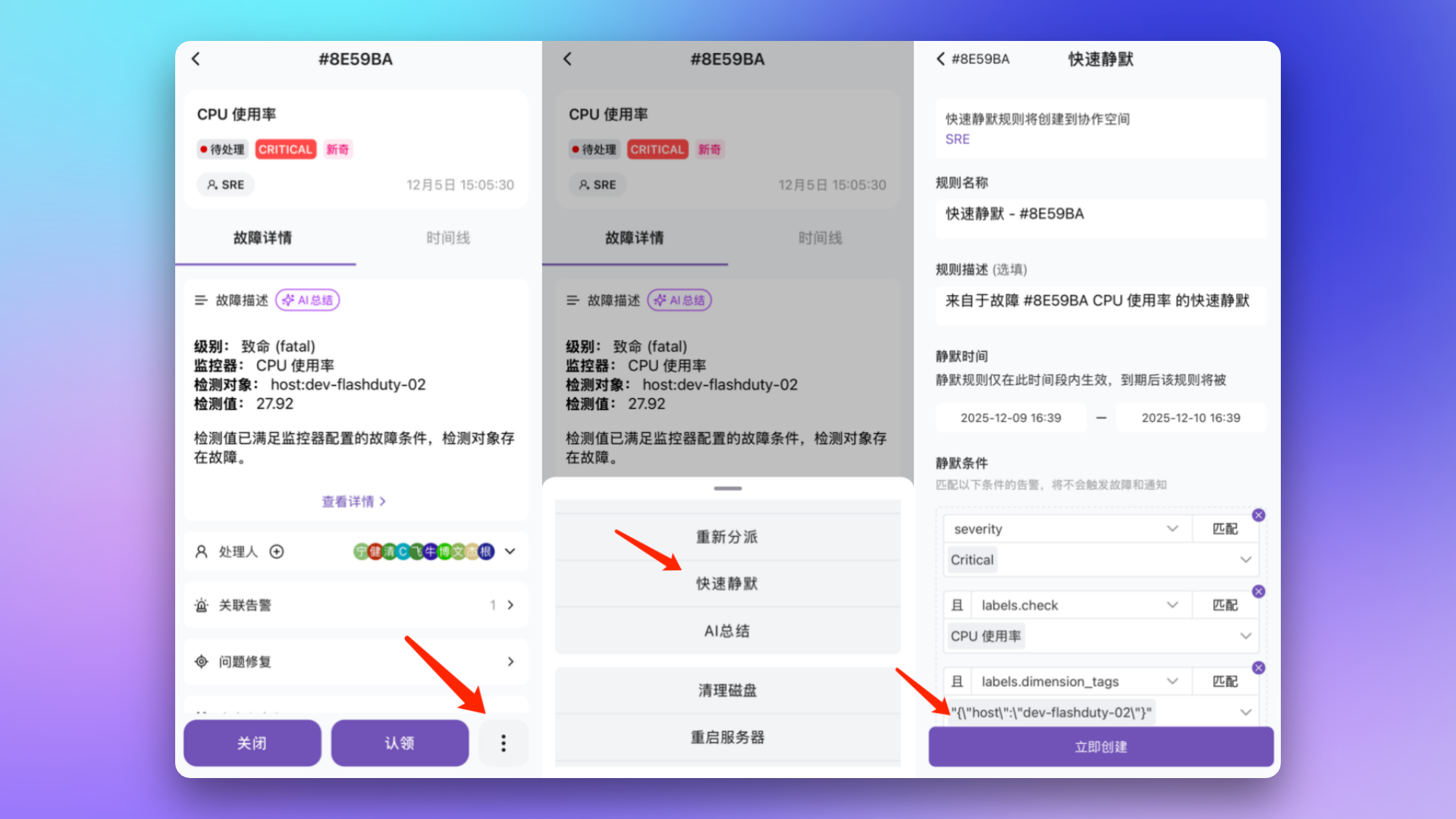
Quickly create temporary silence rules based on existing incidents.Operation Path: Incident Details → More Actions → Quick Silence
Rule name defaults to “Quick Silence - #short-ID”, with the incident title included in the description
Effective scope is the incident’s channel (cannot be changed)
Default effective duration is 1 day. You can type a custom duration in the left input box (formats such as 30m, 1h, 12h, 1d, 1w, 2w are supported) or pick an absolute time range on the right. The rule is automatically deleted after expiration
Conditions default to severity and filtered label matching (automatically excluding numeric, overly long, and special labels)
Quick Silence Configuration
When repeatedly using quick silence on the same incident, it edits the original rule rather than creating a new one.
When a root cause alert exists, automatically inhibit related secondary alerts. For example: When a Critical level incident exists, inhibit Warning/Info level incidents for the same check item.
When a new alert meets the conditions and there is a matching active alert (not acknowledged and not recovered) within the last 10 minutes, and both share equal items, the new alert is inhibited.
Configuration
Description
New Alert Conditions
Conditions the inhibited alert must meet, e.g., severity is Warning/Info
Active Alert Conditions
Conditions the inhibiting source alert must meet, e.g., severity is Critical
Equal Items
Attributes or labels that must be identical between both, e.g., check item, hostname
Will the incident title change when new alerts merge in?
No. The incident title matches the first alert that triggered it and can be manually modified at any time; it won’t change with new alerts.
Will incident labels change when new alerts merge in?
Manually created incidents: No, labels list always remains empty
Auto-triggered incidents: Possibly, incident labels stay consistent with the first alert; if that alert’s labels change, incident labels update accordingly
Will alert labels change when new events merge in?
Yes. Alert labels always stay consistent with the latest merged event. However, if the new event is a recovery event, the alert keeps existing labels and only adds labels that didn’t exist before.
What's the maximum number of alerts a single incident can group?
Up to 5000, mainly to ensure console rendering performance. Due to backend concurrent processing, actual count may slightly exceed this limit.
What's the maximum number of events a single alert can be associated with?
Whether an event can merge into an existing alert is controlled by the channel’s Event Aggregation setting (which governs the “Event → Alert” stage — enabled by default with a 24-hour window, configurable from 1 to 1440 minutes, or can be turned off entirely):
Event Aggregation enabled: events with the same alert_key merge into the same alert within the window; events arriving after the window expires create a new alert
Event Aggregation disabled: every event creates an independent alert, with no merging
Note that Alert Grouping controls the merge window at the “Alert → Incident” stage (24 hours by default, extendable to 30 days). It is a separate concern from whether events merge into an alert — don’t conflate the two.